

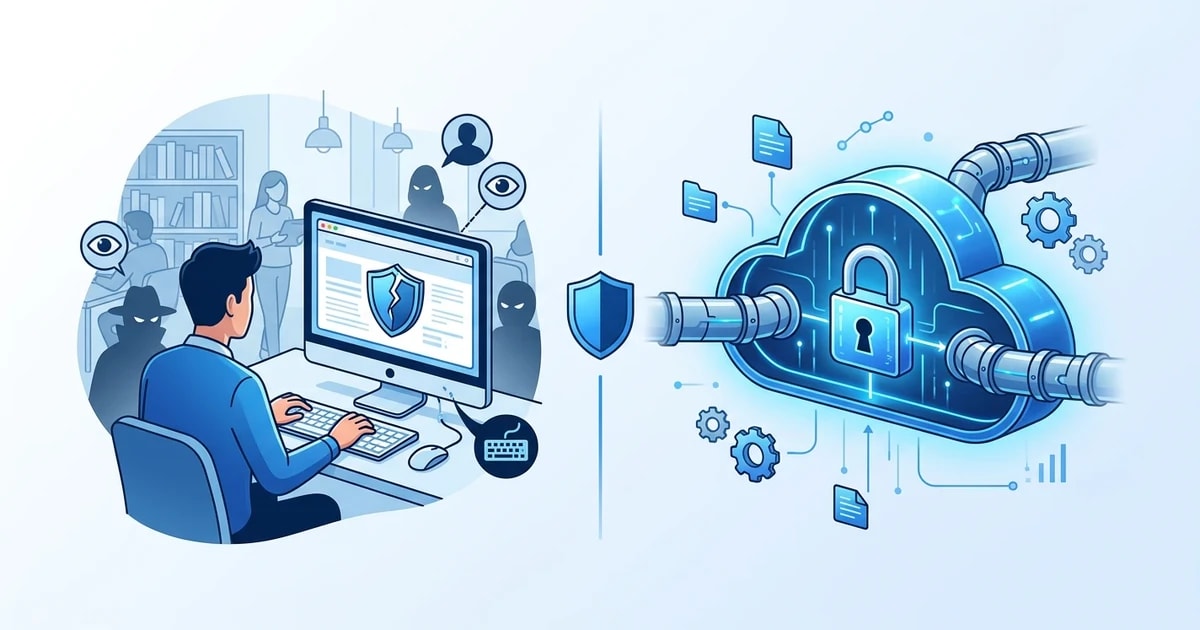
The short answer: on public Wi-Fi the main risks are joining a fake hotspot and being watched by other people on the same network. On a shared computer, the main risks are leftover sign-ins and keyloggers. The defenses are not complicated. Confirm the network name before you connect, never click through a certificate warning, turn on two-factor authentication for important accounts, use a VPN when it helps, and sign out and forget the network when you are done. This article walks through the three stages, before you leave, while you connect and after you finish, and is just as clear about what a VPN can and cannot do. It reflects the situation as of November 2026.
What are the real risks on public Wi-Fi?
Free Wi-Fi in cafes, airports and hotels is convenient, but it comes with one built-in feature: you share the network with a room full of strangers. In practice three kinds of problems matter.
Risk one: joining a fake hotspot
Anyone can set up a hotspot with the same name as the cafe's, say "Cafe_Free_WiFi", and often with a stronger signal. Many people pick the network with the best signal, and some devices join a familiar name automatically without asking. Once you are connected, all your traffic passes through the attacker's equipment first. Do not choose a hotspot by its signal strength. Ask a member of staff for the exact network name, especially when the network has a password.
Risk two: being watched from inside the network
On an open or weakly protected network, other users can sometimes capture traffic. Today most websites use HTTPS, which keeps the content encrypted, so the risk is much smaller than it used to be. But which sites you visit and your DNS lookups can still be visible to people on the same network.
Risk three: being redirected or tricked into typing something
Public networks often show a "captive portal", a page you must open to accept terms or sign in before you get online. That page can be forged. A fake portal may ask for your phone number, your email address or even a password. Always check the address before you type, and never enter sensitive information that has nothing to do with getting online.
How a fake hotspot actually fools people
The process is simpler than most people expect. An attacker brings a small device, creates a network with the same name as the venue's, and turns up the signal. Your phone or laptop sees a network it has used before and connects without asking. From that moment, everything you do goes through the attacker's device first. With HTTPS on most sites, he usually cannot read the content. But he can see which sites you visit, steer you to a look-alike sign-in page, or collect what you type if you click past a warning. That is why two defenses matter more than any others: turn off auto-join, and never click through warnings.
How to tell a real hotspot from a fake one
There is no perfect test, but a few signs should make you stop and ask. The venue tells you the network name is "Cafe_WiFi" and you see three similar names, such as "Cafe_WiFi_Free" or "Cafe-WiFi", with only a slight difference in spelling. A network claims to need no password while the staff say there is one, or the other way around. A portal page asks for more than you would expect, such as a card number, a government ID or a password to an unrelated service. The signal is oddly strong everywhere you walk. In all of these cases the cheapest and safest answer is to ask the staff and, if they cannot confirm which network is theirs, to use your mobile data instead.
HTTPS already encrypts. So why use a VPN?
This is the most common question, and the answer is a matter of scope. HTTPS protects the content between you and the website. A VPN protects the whole stretch between your device and the VPN server. With a VPN on, your device first places its traffic inside an encrypted tunnel, which travels over the public hotspot to the VPN server, and only then on to the website. People on the same Wi-Fi network see an encrypted stream, not the sites you are visiting.

Know its limits, though. After the VPN server, your traffic looks like normal internet traffic. And if the device itself has malware, a VPN cannot protect you.
What a certificate warning is really telling you
When you open an HTTPS site, your browser checks a digital certificate to confirm two things: that the site really belongs to the domain you typed, and that the connection to it is encrypted. A warning appears when that check fails. Sometimes the cause is harmless, for example a site whose certificate expired yesterday or a computer whose clock is wrong. But on a public network the same warning can mean that somebody is sitting between you and the site and presenting a certificate of their own. You cannot tell the difference from your seat, and that is the point: the safe response is not to find out, but to leave. Close the page, do not enter anything, and switch to a network you control.
A three-stage checklist: before, during and after

Before you leave: do what you can in advance
- Update your system and apps. Many security problems are fixed by patches, so update before you travel.
- Turn on two-factor authentication for important accounts. Even if a password is seen, the attacker still needs a second step.
- Turn off auto-join for known networks. Devices join a network with a familiar name automatically, which is exactly what a fake hotspot relies on.
- Tighten nearby sharing and file sharing. On a public network, switch off sharing features or limit them to contacts only.
- Install your VPN client and sign in before you go. Do not wait until you are on public Wi-Fi, because then the installer itself is downloaded on an untrusted network.
While connecting: judgments you can make on the spot
- Confirm the hotspot name. Ask staff for the exact name rather than trusting signal strength.
- Pass the captive portal first, then turn on the VPN. Some networks need you to sign in on a web page before anything works. Until you do, a VPN often cannot connect.
- Check the address and the padlock before typing a password. Is the domain correct, and is the connection HTTPS?
- Never click through a certificate warning. If you see "certificate not trusted", close the page and use mobile data.
- For online banking and payments, use your mobile connection. It is the simplest and most effective habit.
When you are done: leave nothing behind
- Sign out of accounts and close apps you do not need.
- "Forget" the public network in your device settings so it does not reconnect later.
- If you signed in on a shared computer, change the related passwords from your own device afterward, especially the one you typed there.
Phones and laptops: what to set on each
On a phone: in the Wi-Fi settings, turn off the option that joins known networks automatically, especially for generic names such as "Free WiFi" or "Airport WiFi". Set nearby sharing to contacts only, or switch it off in public places. After you connect, glance at the settings to confirm the network name is the one you meant.
On a laptop: the first time you join a new network, the system asks whether it is a private or public network. In cafes and airports, always choose public. That setting turns off network discovery and file sharing, which would otherwise expose your computer to the people around you. Make sure the firewall is on, and do not leave shared folders or remote desktop reachable on public networks. None of this needs extra software, and checking takes about a minute, yet it blocks a large share of the trouble that comes from other people on the same network.
Your phone as a safer hotspot
If you can, sharing your phone's mobile data with your laptop is often safer than joining a public network. Only you and the people you give the password to are on that network. Give the hotspot a strong password, avoid a name that reveals who you are, choose the strongest security mode your devices support, and switch it off when you finish. Remember that tethering uses your mobile data allowance, and some plans limit it, so check your plan before you rely on it for a long session. For short, sensitive tasks such as banking, a few minutes of tethering is a very reasonable trade.
Which tasks belong on mobile data?
You do not need to treat every action the same way. Reading the news or watching a video on public Wi-Fi is low risk. Signing in to email, social accounts or cloud storage deserves the full checklist and, ideally, a VPN. Banking, payments, changing passwords and anything involving identity documents belong on your own mobile connection, or at home. A good rule of thumb: the more damage a stolen session could do, the less it should travel over a network you do not control.
Shared computers deserve extra caution
The computers in internet cafes, libraries and hotel business centers are a different matter from your own, because you do not know what is installed on them. Three problems are common: a keylogger can record every key you press, leftover sessions such as saved accounts or sign-ins that were never closed can remain in the browser, and downloaded files can stay on the machine.
The principle is simple: avoid it if you can, and keep it to the minimum if you must. Sign in only to what you need. Use a private browsing window. Do not save passwords and do not tick "remember me". When you finish, sign out fully, close every window and delete anything you downloaded. One more thing: do not sign in to your own VPN account on a shared computer. You cannot verify that the machine is clean, and a VPN cannot protect a computer that is being monitored.
Public Wi-Fi and work accounts
If you sign in to company systems while traveling, your employer's rules come first. Many organizations require you to use their own VPN or a managed device, and they may restrict what you can run alongside it. A personal VPN is not a substitute for those requirements and should not be used to work around them. When in doubt, ask your IT team before you leave. They would much rather answer a question than investigate an incident.
A two-minute routine for every new network
If the checklist feels long, reduce it to a routine you can run in two minutes whenever you join a new network. Confirm the name with a person. Mark the network as public on a laptop. Finish any captive portal page, and only that. Turn on your VPN. Open one ordinary HTTPS site and glance at the address and the padlock to see that everything behaves normally. Then do your work. When you leave, forget the network and sign out of anything sensitive. Once it becomes a habit, the whole sequence takes less time than finding a power outlet, and it removes most of the avoidable risk.
Five myths worth dropping
- "I have nothing to hide, so it does not matter." The issue is not secrets. It is account takeover, stolen sessions and phishing, which hurt ordinary people.
- "The padlock means the site is safe." The padlock means the connection to that site is encrypted. A phishing page can have one too.
- "Private browsing hides me from the Wi-Fi owner." A private window only stops the browser from keeping history on your device. The network can still see where the traffic goes.
- "A VPN makes me anonymous." A VPN changes who can see your traffic. It does not remove the sites you log in to or the information you give them.
- "A Wi-Fi network with a password is safe." If everyone in the room has the same password, you still share the network with all of them.
Business trips and cross-border travel: a few extra steps
On a trip you are more likely to meet several problems at once: networks you do not know, borrowed devices and a tight schedule. In addition to the checklist, these are worth arranging in advance:
- Install and sign in before departure. In some places downloading certain apps is inconvenient, and finding out at the destination is stressful.
- Have a backup connection. A roaming plan or a local data SIM lets you do banking and payments on mobile data rather than public Wi-Fi.
- Avoid public USB charging ports. In theory a modified port can transfer data. Use your own charger and a wall socket where you can.
- Know the local rules. Countries differ in how they treat VPN use. Please use the service lawfully and follow the terms of the platforms you use.
If you think something went wrong
If you see a sign-in alert you do not recognize, receive a verification code you did not request, or feel uneasy after typing a password on a public network, work through it in order. Disconnect from that network first and use your own mobile data. Change your passwords from a clean device, starting with email and payment accounts. Check the list of signed-in devices on each account and sign out anything you do not recognize. Turn on two-factor authentication if it was off. If a bank card or payment account may be affected, contact the issuer promptly. The sooner you act, the smaller the damage usually is.
What a VPN can and cannot do
| Situation | A VPN can help | A VPN cannot help |
|---|---|---|
| Other people on the same public network watching your traffic | Yes. Traffic inside the tunnel is encrypted | — |
| You joined a fake hotspot | Partly. The tunnel protects the content, but you are still connected to their network | Telling a real hotspot from a fake one still depends on you |
| You opened a phishing site and typed a password | No | A VPN does not judge whether a site is a phishing page |
| Your device has malware or a keylogger | No | You need security software and system updates |
| Leftovers and monitoring on a shared computer | No | Avoid, use a private window and sign out |
Where AnboVPN fits
On a trip you often need your phone, laptop and tablet online at once. One AnboVPN account works on multiple devices, with no device limit, and data is counted per account. The client runs on Windows, macOS, Android and Linux. Every new account gets 10 GB of free data, once, valid for one month, so you can install, sign in and try it before you leave. If you often work from cafes or coworking spaces, install the client once on each device and keep it signed in, so that connecting takes a single tap when you arrive and you are never tempted to skip it. A VPN is one layer of protection on a public network. The checklist above still matters, and please use the service in line with local laws.